How to connect Binance to Pilotbot
Step-by-step: create a Binance API key with the necessary permissions, restrict it by IP, and insert it into Pilotbot — securely, with no withdrawal access.
Pilotbot Team
Author
On this page
- Step 1. Diving into settings: API Management
- Step 2. Building the foundation: New API Key
- Step 3. Naming your assistant
- Step 4. Verifying your identity
- Step 5. Your keys are ready!
- Step 6. Configuring permissions: Granting the right powers
- Step 7. The final touch: Adding keys to Pilotbot
- What to read next?
Automation Magic: Connecting Binance to Pilotbot

For Pilotbot to become your tireless P2P assistant, capable of managing ads 24/7, it needs access. We will grant it only the permissions required to read the market and update prices, keeping your funds absolutely safe.
Let's walk through this process in a few simple steps.
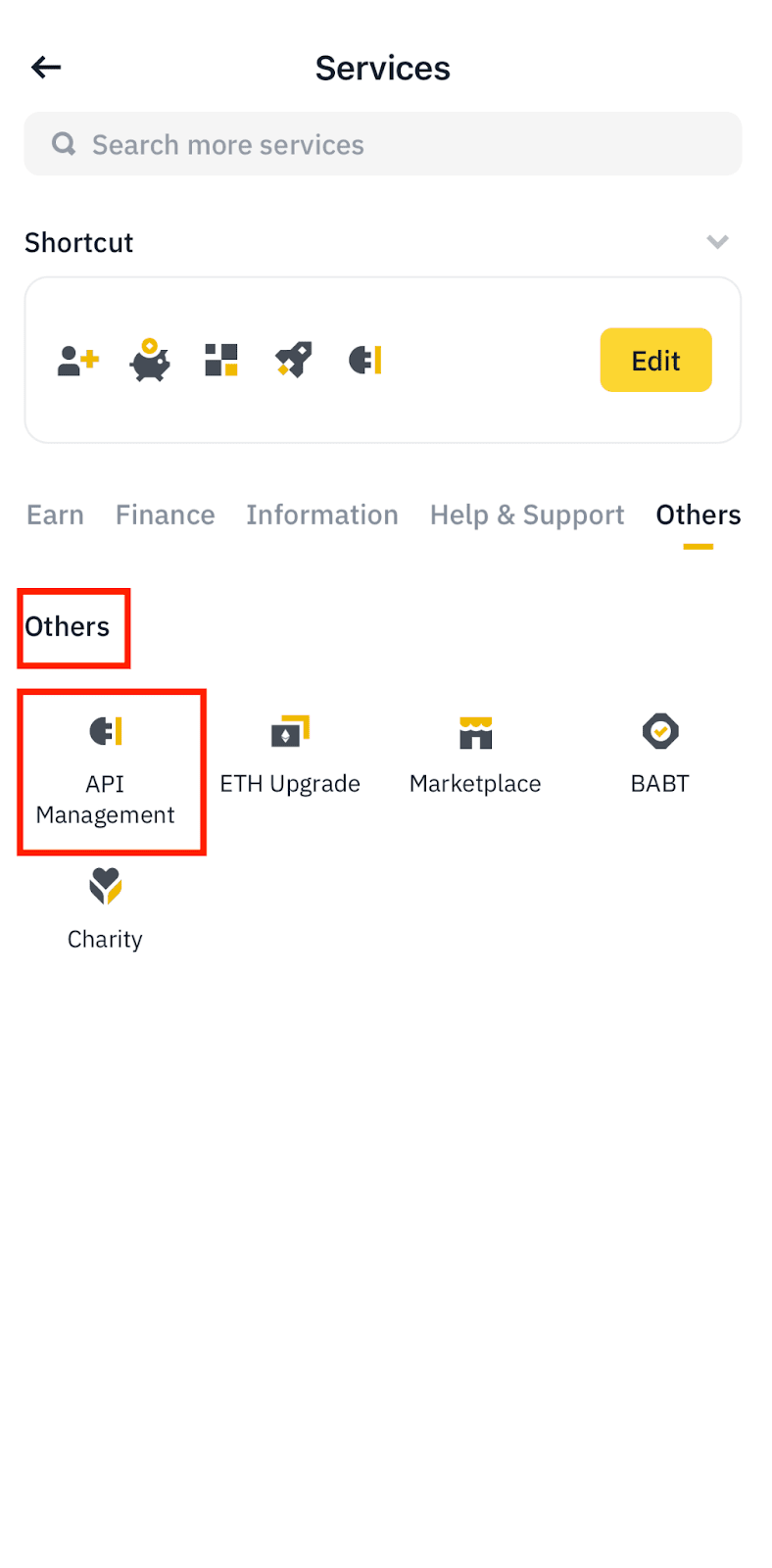
Step 1. Diving into settings: API Management
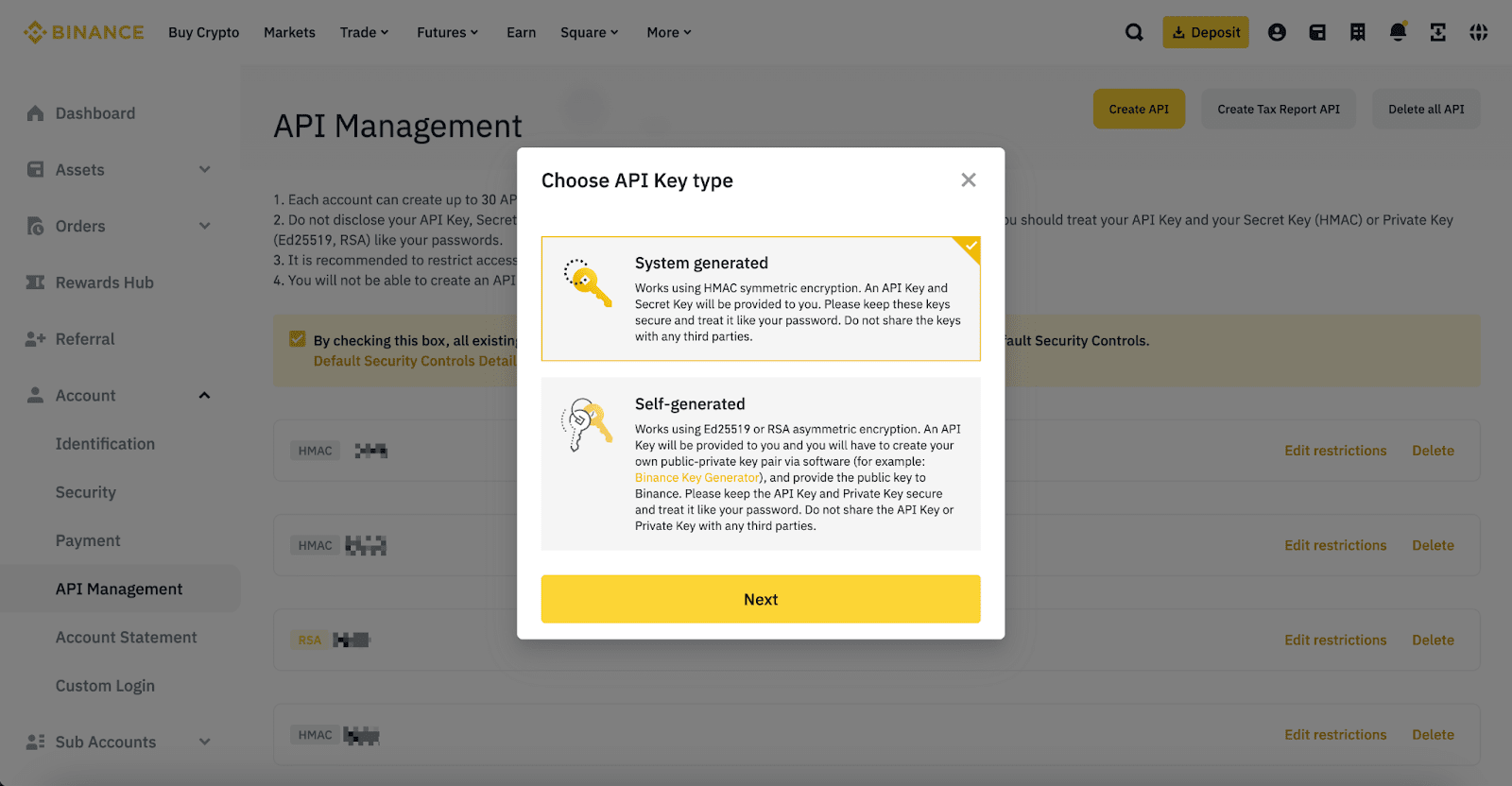
First, log into your Binance account. Hover over the profile menu in the top right corner and select API Management. You can also use the direct link to get there instantly.
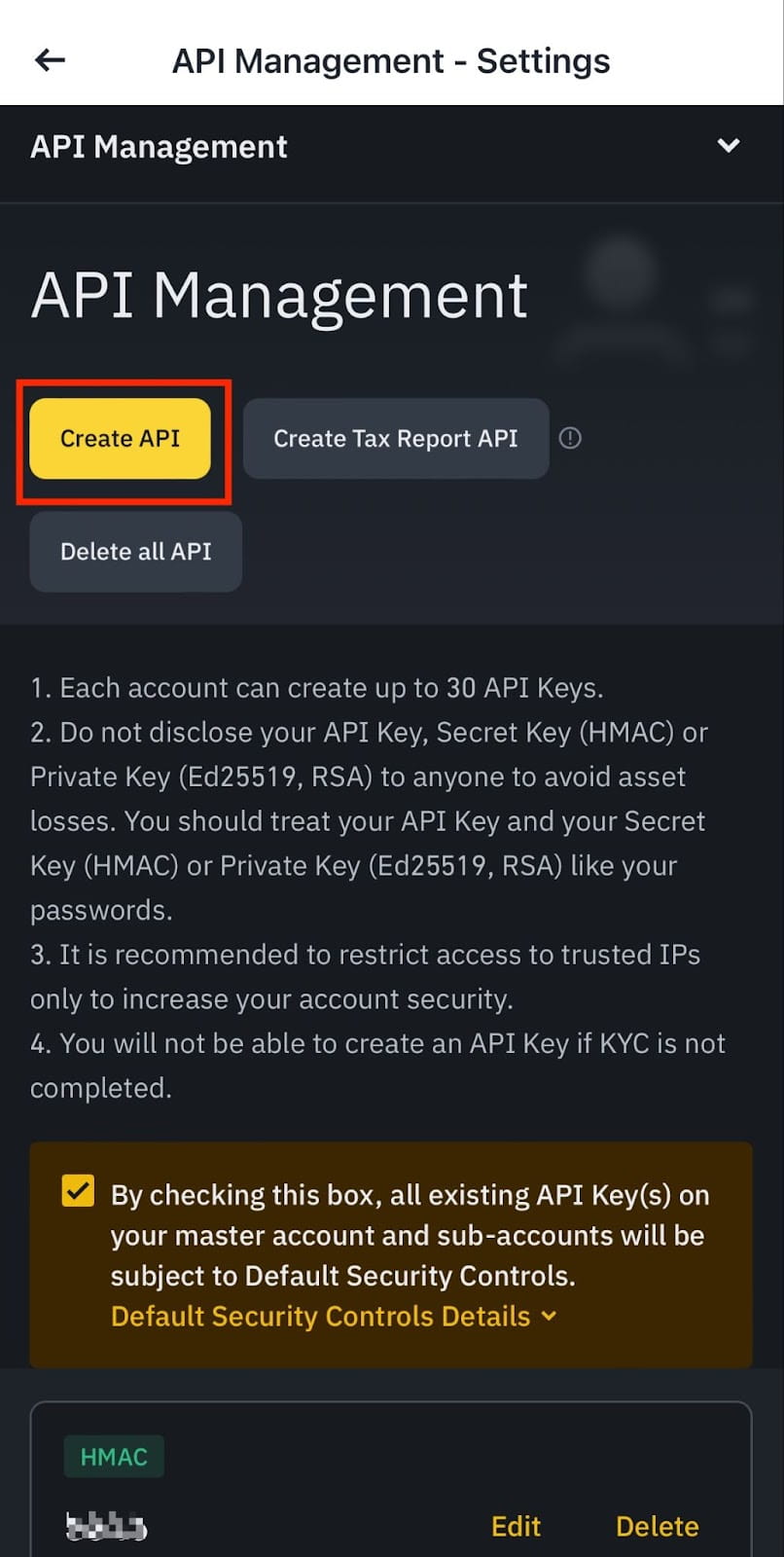
Step 2. Building the foundation: New API Key
In the API Management section, you will see a yellow Create API button. Click it!
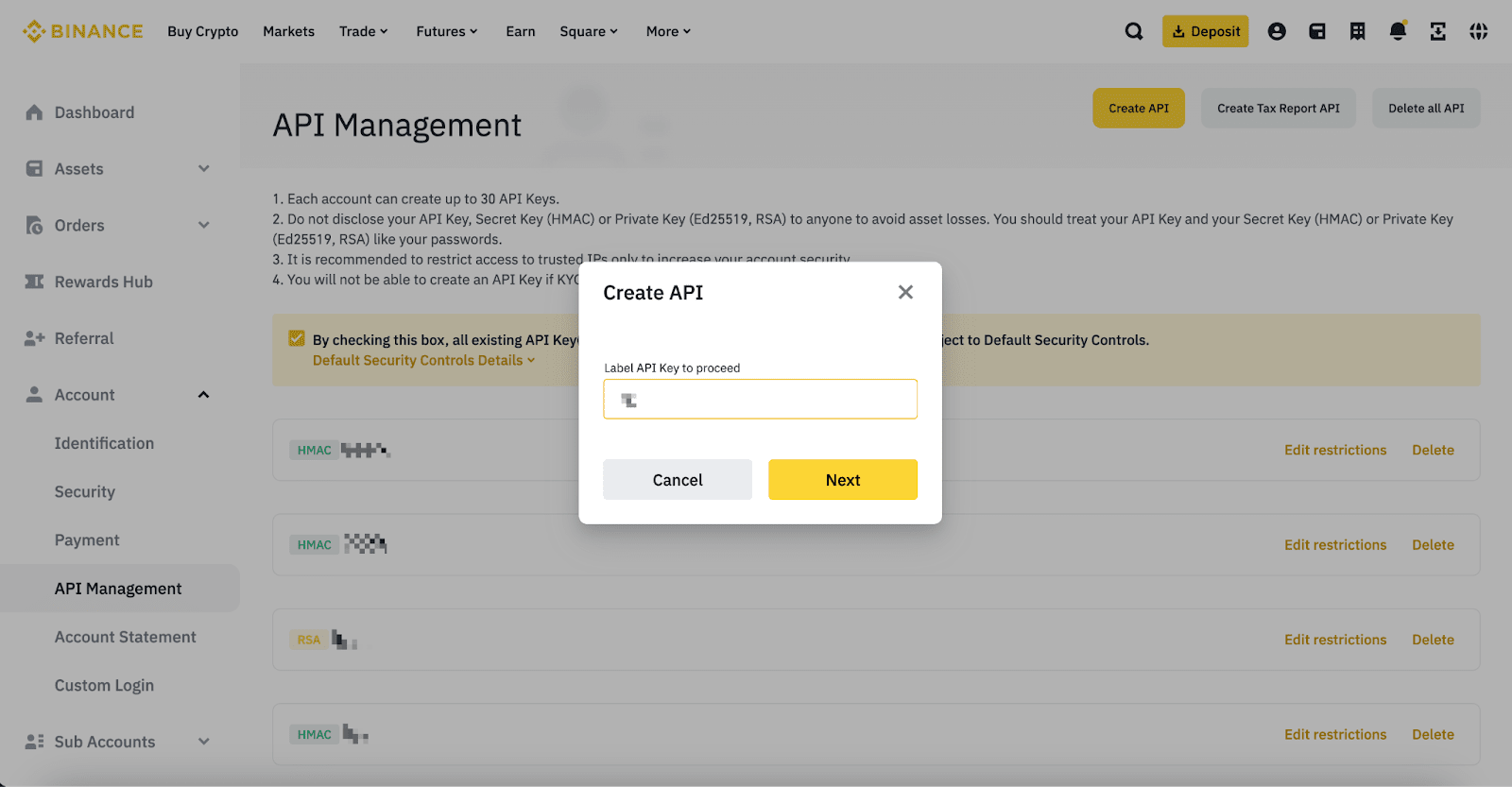
In the pop-up window, you will be prompted to select the key type. Choose the reliable classic — System generated and move forward.
Step 3. Naming your assistant
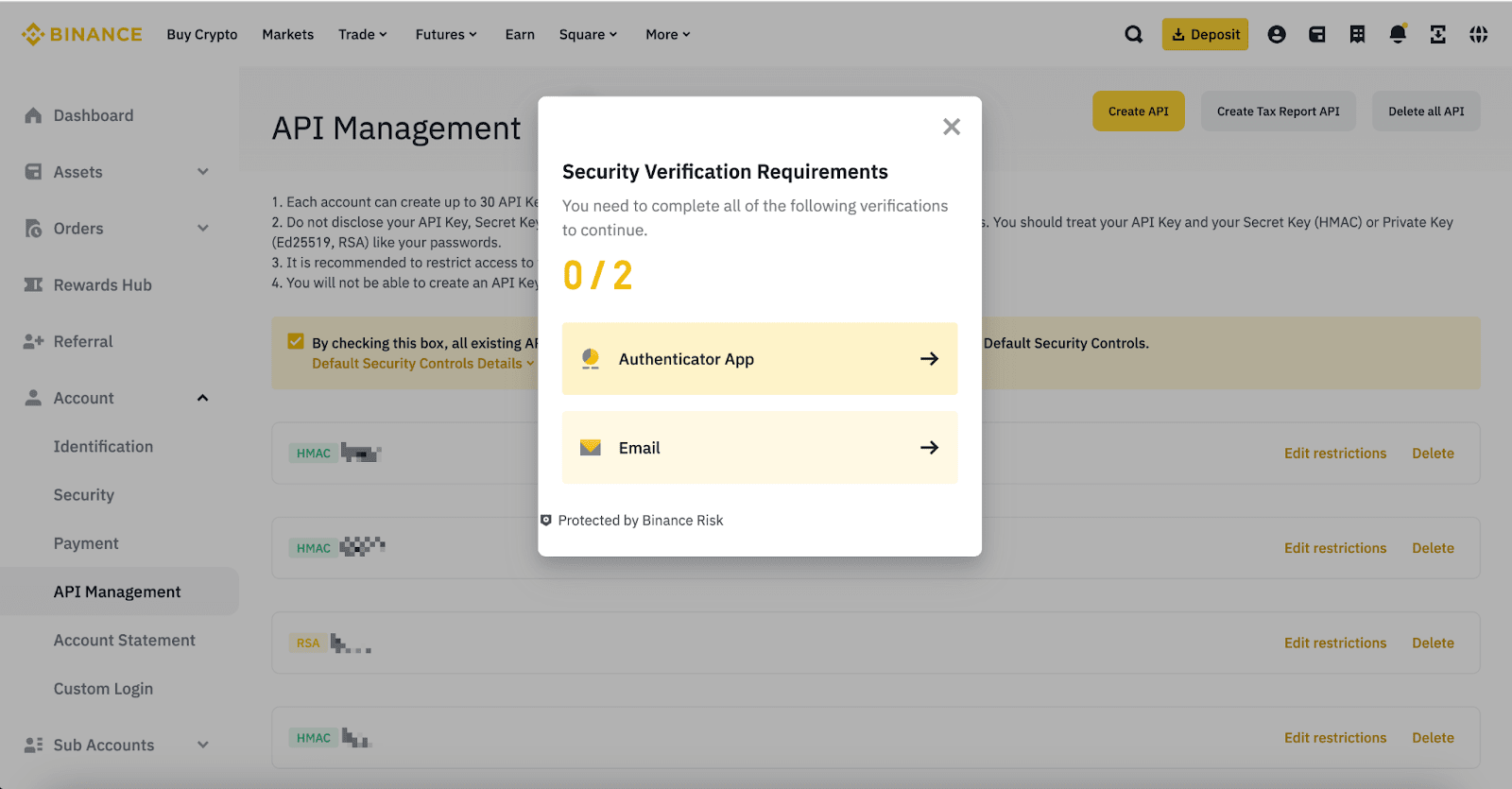
Give the key a memorable name. We recommend simply naming it Pilotbot so you always know what it is for. Click Next.
Step 4. Verifying your identity
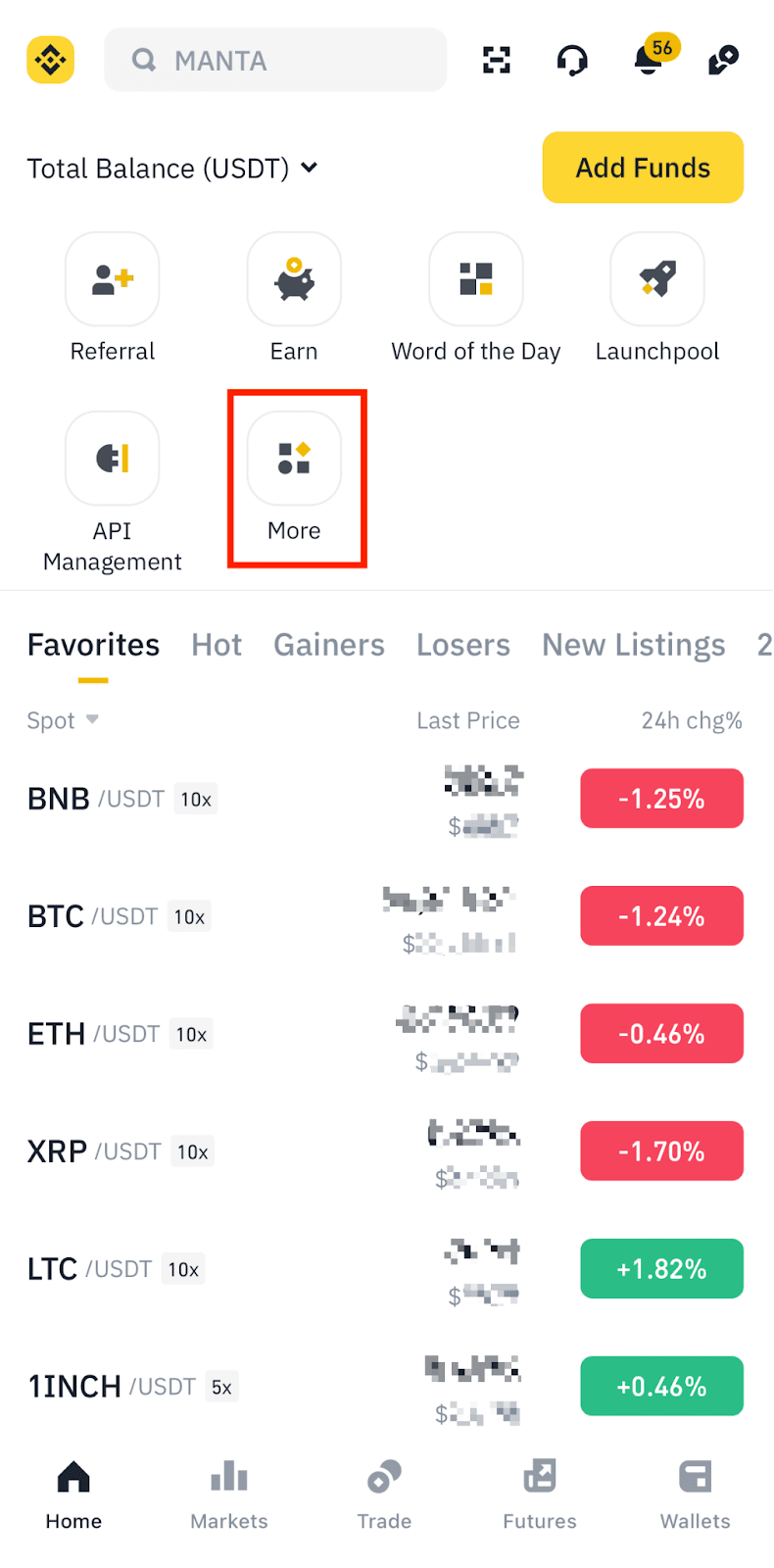
Binance vigilantly protects your account, so it will ask you to confirm that it is really you. Complete the standard security verification (enter codes from SMS, email, or an authenticator app).
Step 5. Your keys are ready!
Congratulations! Binance has created your API Key and Secret Key.
Step 6. Configuring permissions: Granting the right powers
Click Edit Restrictions on the panel of your new key. What you need to enable:
- Enable Spot & Margin Trading
- Enable Futures
Leave the Enable Withdrawals permission disabled — Pilotbot does not need it!
Step 7. The final touch: Adding keys to Pilotbot
- Return to the Pilotbot workspace.
- Open Add Account.
- Select the Binance tab.
- Paste the copied API Key and Secret Key.
- Click Confirm and add.
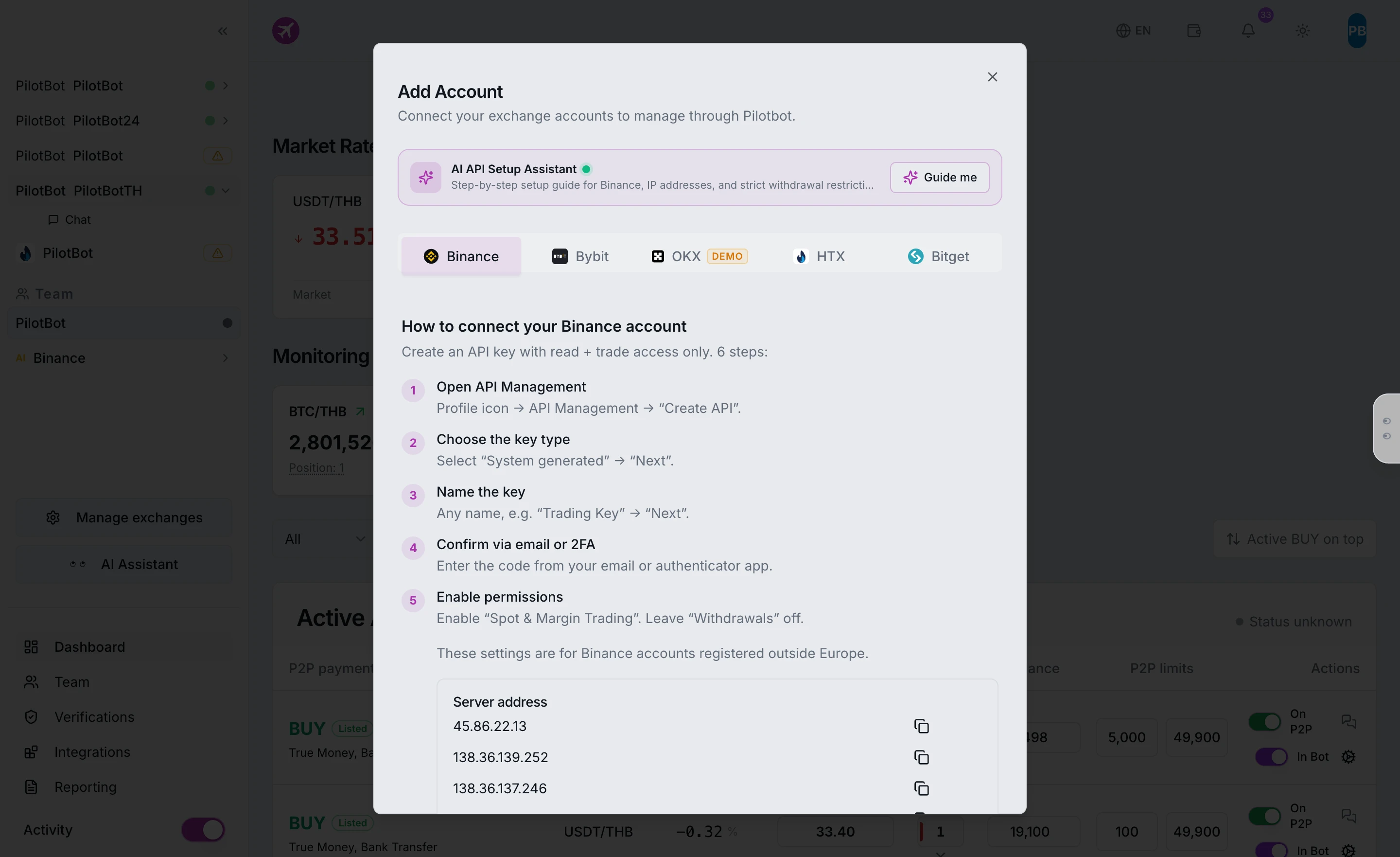
Voila! 🎉 Your Binance account now proudly sits in the sidebar. You are ready to hand over the helm to the AI agent and enjoy the automation of your P2P ads.