Payout Wallets: Adding Addresses, Networks, and 24-Hour Delay
How to add a USDT payout wallet in the partner cabinet, select the correct network, why new wallets have a 24-hour security delay, and what to do if you entered the wrong address.
Pilotbot Team
Author
On this page
- Command Center: Where Payouts Are Managed
- Step-by-Step Guide: How to Add a Payout Wallet
- Blockchain Navigator: Selecting the Right Network
- Security Protocol: Why New Wallets Have a 24-Hour Delay
- Entered the Wrong Address or Network: Emergency Action Plan
- Scenario 1. You noticed the error BEFORE submitting a withdrawal request
- Scenario 2. Request created, but not yet confirmed via email
- Scenario 3. Request confirmed and currently in processing
- Request Lifecycle: From Balance to Wallet
- Managing and Removing Wallets
- Frequently Asked Questions
- Do I need a separate wallet for each network?
- Can I request a payout immediately after adding a wallet?
- What should I do if the payout confirmation email does not arrive?
- Where can I track my payout status?
- What if my payout hasn't arrived within 5 business days?
- Related Guides

Partner Financial Gateway: Configuring Wallets, Network Selection, and Payout Protection
In the Pilotbot partner program, your earnings accrue in real time: from 30% to 50% from the first payment of every referred trader is instantly credited to your partner balance. To convert these figures into realized profit in your exchange deposit or private crypto wallet, the platform utilizes a flexible and resilient payment gateway.
Every payout is dispatched strictly to the credentials bound under the "Payouts" tab. Below is the complete guide to linking addresses, selecting blockchain networks without errors, and understanding built-in capital protection mechanisms.
Command Center: Where Payouts Are Managed
All financial operations, accrual history, and credential management are unified in the Pilotbot interface.
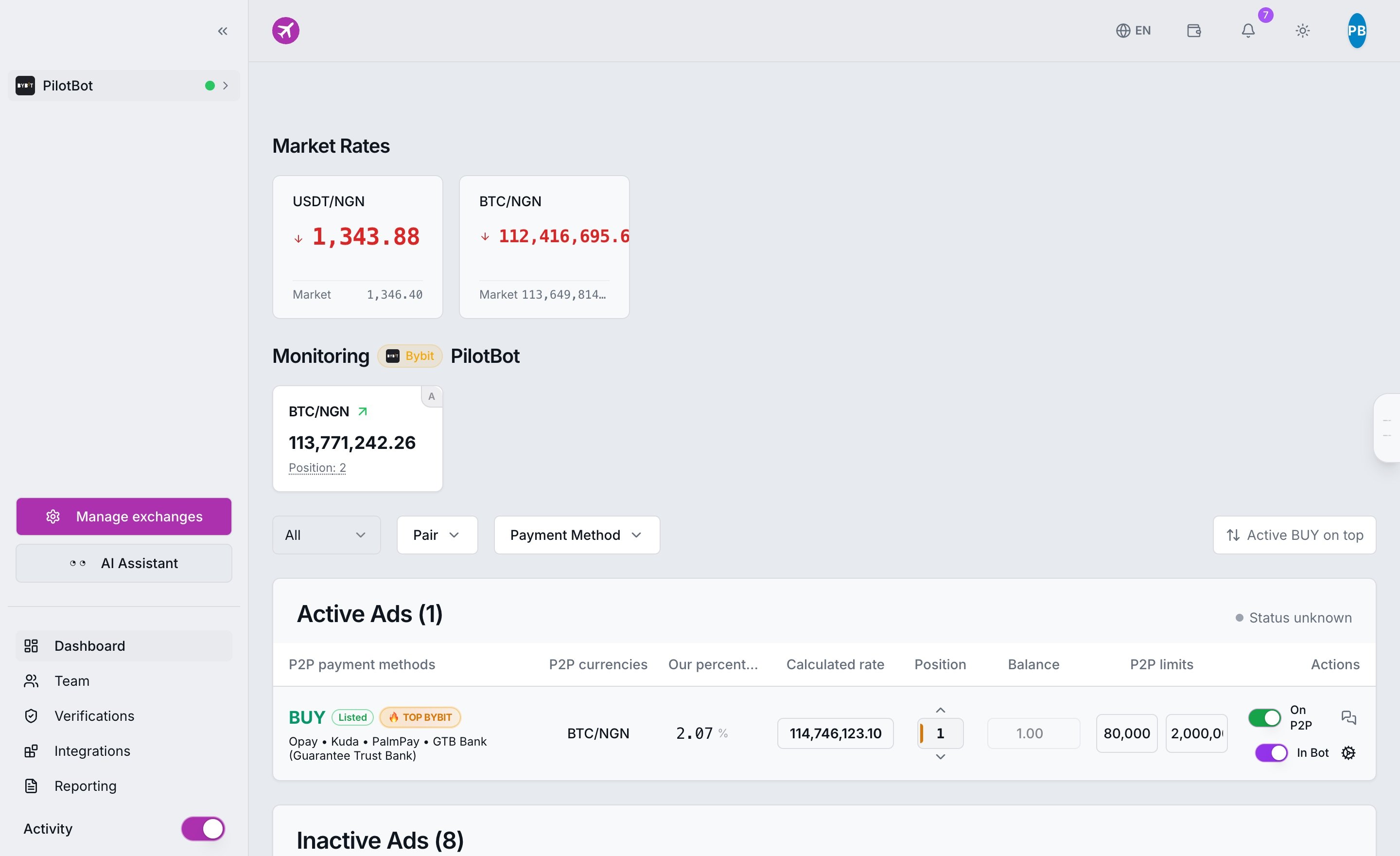
To access wallet settings:
- Log in to your Pilotbot workspace.
- In the sidebar menu, open Profile → Partner Cabinet.
- Switch to the Payouts tab — here you will find your available balance, transaction history, and list of linked wallets.
Step-by-Step Guide: How to Add a Payout Wallet
Linking an address takes less than a minute, but requires absolute precision when copying data:
- Click Add Wallet in the top-right corner of the payouts block.
- Select the transfer network from the dropdown of supported blockchains (TRC20, BEP20, TON, etc.).
- Paste your public USDT address. Note: Pilotbot conducts all partner payouts exclusively in the USDT stablecoin — the asset is always the same, only the transport network changes.
- Specify a clear label (name) for the wallet (e.g., "Bybit Deposit", "Cold Ledger", or "Telegram Wallet"). This avoids confusion if you use multiple destinations.
- Click Save. If desired, set this wallet as Primary — the system will automatically prefill it for all new withdrawal requests.
Blockchain Navigator: Selecting the Right Network
A blockchain network is the digital highway over which your USDT travels from the platform to your wallet. While USDT tokens across TRC20, BEP20, and TON hold identical monetary value, they are technically incompatible protocols.
| Blockchain Network | Label in Cabinet | Address Format | Features & Advantages | How to Locate on Exchange |
|---|---|---|---|---|
| TRON (TRC20) | USDT-TRC20 | Starts with T (34 characters) | Most widely used network among P2P traders, maximum liquidity on all exchanges | Deposit USDT → Tron (TRC20) Network |
| BNB Chain (BEP20) | USDT-BEP20 | Starts with 0x (42 characters) | Ultra-low network fees, instant block confirmation speeds | Deposit USDT → BSC / BNB Smart Chain (BEP20) |
| TON (The Open Network) | USDT-TON | Starts with EQ or UQ (48 characters) | Ideal for direct withdrawals to Telegram Wallet and the TON ecosystem | Deposit USDT → TON Network |
Security Protocol: Why New Wallets Have a 24-Hour Delay
Every newly added wallet enters a temporary lock period lasting 24 hours. During this quarantine, withdrawals to this specific address are blocked.
This represents a critical security perimeter in the Pilotbot infrastructure:
- Account Takeover Defense: If an unauthorized party gains access to your account and attempts to redirect payouts to their own address, the 24-hour delay gives you ample time to react and secure your workspace.
- Instant Alerts: When a new address is registered, the system immediately dispatches an alert to the account owner's email. You are notified of changes right away.
- One-Time Quarantine: The delay is enforced strictly once — upon the initial addition of the new address. After 24 hours, the wallet transitions to permanent "Active" status and services all future payouts instantly.
Entered the Wrong Address or Network: Emergency Action Plan
Cryptocurrency transfers are immutable by nature: once a transaction is broadcast to the blockchain mempool, technical recovery is impossible. However, prior to actual broadcast, you have full control:
Scenario 1. You noticed the error BEFORE submitting a withdrawal request
Simply delete the incorrect entry in your wallet list and add the correct address with the proper network. Note: the newly added address will require the standard 24-hour activation quarantine.
Scenario 2. Request created, but not yet confirmed via email
Every withdrawal requires email confirmation. If you spot incorrect details — do not click the confirmation link in the email. Unconfirmed requests automatically expire after 24 hours, and the entire amount returns to your "Available" balance.
Scenario 3. Request confirmed and currently in processing
Quickly open the Payouts tab and check the status. If the Cancel Request button is active — click it immediately. If the status has progressed to "Processing", urgently contact Pilotbot Support via ticket or Telegram, citing your request ID. If funds have not yet been broadcast to the chain, operators will halt the transfer.
Request Lifecycle: From Balance to Wallet
- Request Creation: Select an active wallet and specify the withdrawal amount.
- Owner Verification (Email Confirmation): The system dispatches a secure, one-time verification email to your inbox. The request awaits confirmation for up to 24 hours.
- Financial Review & Security Audit: The Pilotbot finance team verifies the transaction (standard SLA is 1 to 5 business days).
- Blockchain Transfer: Funds are broadcast to the network, and a TXID (transaction hash) appears in your payout history, allowing you to track the confirmation on-chain.
Managing and Removing Wallets
If you stop using a specific exchange account or rotate your private address:
- Navigate to Profile → Partner Cabinet → Payouts.
- Locate the corresponding card in your saved wallets list.
- Click Delete Wallet and confirm.
Deleting a wallet removes it from the quick-selection dropdown. It does not affect previous payout records or requests already in progress.
Frequently Asked Questions
Do I need a separate wallet for each network?
Yes, absolutely. Even if some wallet applications display identical address strings across different networks, in Pilotbot each network must be linked as a separate entry. Create distinct entries for TRC20, BEP20, and TON.
Can I request a payout immediately after adding a wallet?
No. For capital security reasons, newly linked addresses become available for withdrawal exactly 24 hours after addition. You can link the address, set a label, and double-check network details at any time, but withdrawal requests will unlock once the timer expires.
What should I do if the payout confirmation email does not arrive?
First, check your Spam and Promotions folders. If the email is missing, return to the Payouts tab and resend the request: the old link will be invalidated and a fresh email will be issued. If a request remains unconfirmed for 24 hours, the funds are automatically refunded to your available balance.
Where can I track my payout status?
All information is available in the "Payout History" table within your partner cabinet. You can monitor the real-time status at every step: from awaiting email confirmation to the on-chain explorer link with transaction hash.
What if my payout hasn't arrived within 5 business days?
The standard processing timeframe is 1 to 5 business days. If this window has elapsed, reach out to Pilotbot Support with your payout request ID and wallet address — our security team will inspect the transaction status individually.