How to connect OKX to Pilotbot
Step-by-step: create an OKX API key with the necessary permissions and passphrase, restrict it by IP, and paste it into Pilotbot — without withdrawal access.
Pilotbot Team
Author
On this page
The connection follows standard exchange security practices: you create an OKX API key with trading permissions and a Passphrase, restrict it to Pilotbot's trusted IP addresses, and add it to your workspace. The key allows the pricing layer to read the market and update your ad prices — withdrawal permissions remain strictly disabled.
Step 1 — Open API Management on OKX
Log into your OKX account and navigate to the API section (API Management) in your account settings.
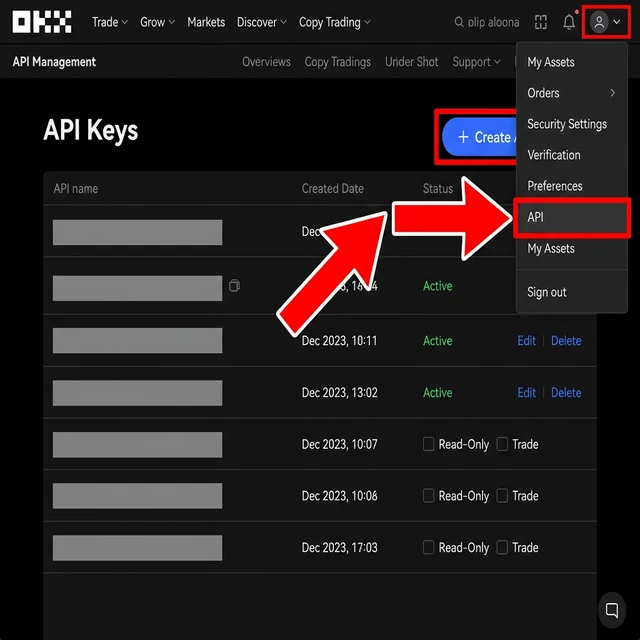
Step 2 — Create a new API key
Click the Create button. Fill in the basic parameters:
- API key name — enter an identifiable name, such as Pilotbot.
- Purpose — select API trading.
- Passphrase — set a secure passphrase. OKX requires this passphrase to sign every API request — be sure to store it securely.
Step 3 — Configure permissions and trusted IP addresses
In the key configuration form, set the required permissions and restrictions:
- Permissions:
- Read — enable (required to read market order books and your ads).
- Trade — enable (required to update prices and place orders).
- Transfer — enable if internal account transfers are needed.
- Withdraw — keep disabled. Pilotbot never requests or uses withdrawal permissions.
- Markets — select Spot & Margin and Events.
- Security / Trusted IP addresses:
- Enable the Trusted IP addresses toggle (Recommended).
- Paste the list of Pilotbot server IP addresses. Requests to your key will only be permitted from our secure nodes.
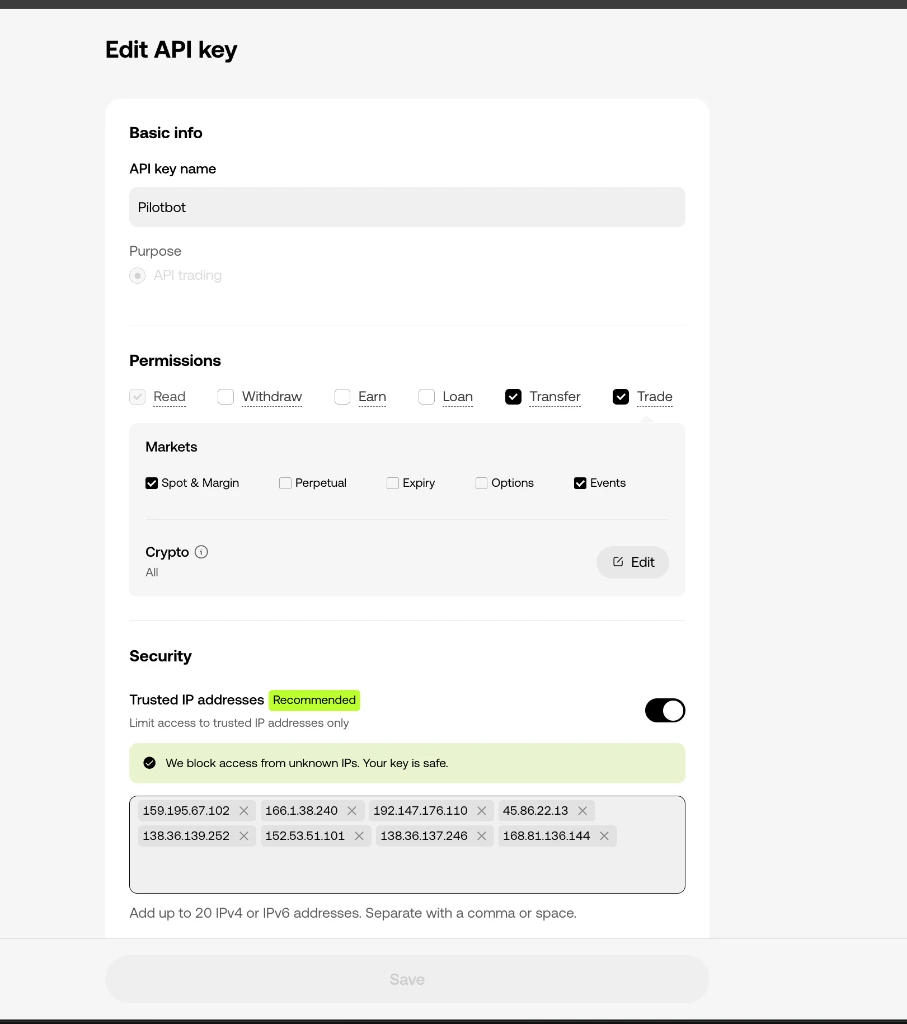
Step 4 — Confirm key creation
Confirm the creation of the key via standard OKX security verification (code via email, SMS, or Google Authenticator).
Step 5 — Copy your keys
After confirmation, OKX will display your new Pilotbot key details: API Key, Secret Key, and your Passphrase.
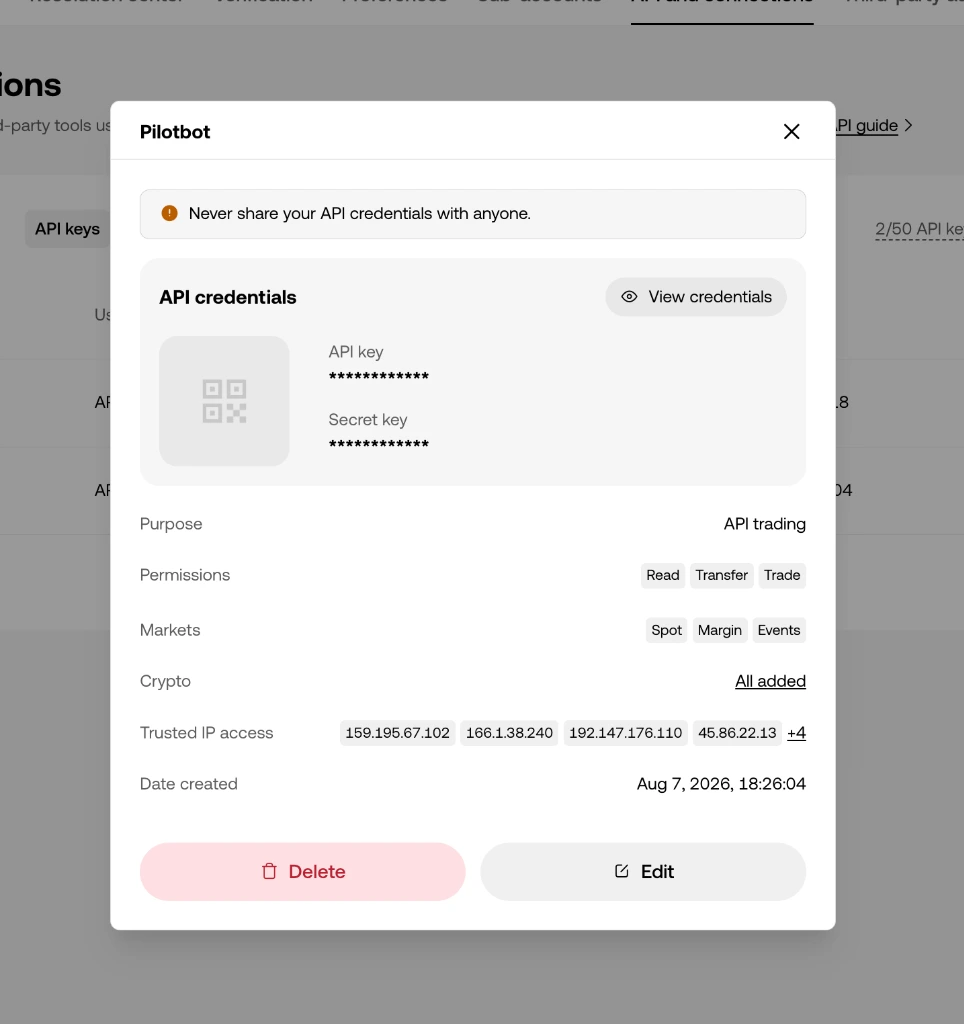
Step 6 — Paste the keys into Pilotbot
Return to Pilotbot, open Add Account, switch to the OKX tab, paste the API Key, Secret Key, and Passphrase, and click Confirm and add.
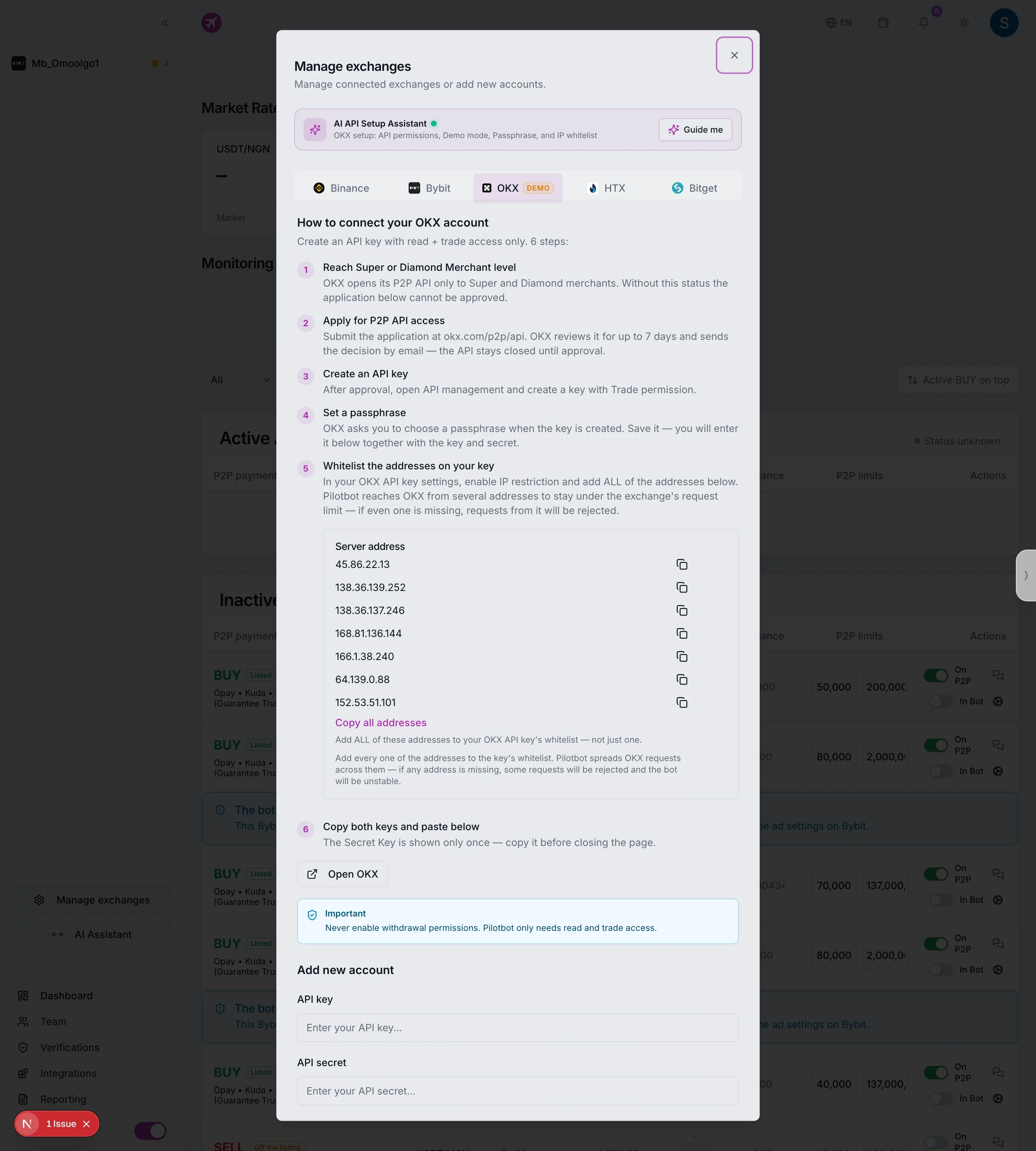
Your OKX account will appear in the sidebar. Next, configure your strategy via the AI agent and enable automation for your ads.