Passkeys — Passwordless Sign In
What a passkey is, why it is more secure than a password, and how to set one up to sign in to Pilotbot using your fingerprint or face.
Pilotbot Team
Author
On this page
- Why Traditional Passwords Lose to Passkeys Across the Board
- Security Anatomy: How Passkeys Work Under the Hood
- Security Center: Access Management in Pilotbot
- Step-by-Step Guide: Setting Up a Passkey in 3 Simple Steps
- Step 1. Navigate to Security Settings
- Step 2. Confirm Biometrics on Your Device
- Step 3. Instant Sign-In
- The Ideal Duo: Using Passkeys Alongside 2FA
- Security Checklist for an Active P2P Trader
- Related Guides

Imagine an ideal login to your trading system: no need to remember complex character combinations, no copying long strings from a password manager, and zero risk of falling victim to phishing on a spoofed domain. You simply touch the fingerprint sensor on your phone or glance into your laptop's camera — and a split-second later, you are managing live orders in the order book.
This is not science fiction. This is a Passkey — the modern industry standard for passwordless authentication built on the FIDO2 / WebAuthn cryptographic protocol.
Passkey technology merges uncompromising, military-grade cryptographic protection with the convenience of instant, one-touch access.
Why Traditional Passwords Lose to Passkeys Across the Board
In arbitrage and P2P trading, reaction speed and capital security are inseparable. Attackers constantly invent new attack vectors: phishing clones, SMS interception, clipboard injectors, and covert session-cookie stealers.
A classic password is a "shared secret." You know it, the server knows its hash, and if you mistakenly enter it on a fake clone site, the attacker gains full control of your account. A Passkey fundamentally changes the game.
| Evaluation Criteria | Traditional Password | Passkey |
|---|---|---|
| Phishing Resistance | Zero: easily entered on a fake domain | Absolute: cryptographically bound to domain |
| Server Leak Risk | Server hash database can be targeted | Private key never leaves your device's hardware chip |
| Sign-In Speed | 10–25 seconds (searching, typing, 2FA code) | Less than 1 second (single touch on Touch ID / Face ID) |
| User Convenience | Must be remembered, changed, and updated | Works out of the box on smartphones, PCs, and YubiKeys |
| Brute-Force Attacks | Feasible with weak passwords or leaked dictionaries | Mathematically impossible (256-bit asymmetric cryptography) |
Security Anatomy: How Passkeys Work Under the Hood
At the core of the technology lies public-key and private-key mathematics — the very same asymmetric cryptography that powers blockchain security and banking transactions.
When you register a Passkey to log into Pilotbot, the following occurs:
- Cryptographic Pair Generation. Inside the dedicated secure hardware chip of your device (Apple Secure Enclave, Google Titan, or PC TPM module), a unique key pair is generated.
- Public Key Sent to Pilotbot. The server stores exclusively the public key. It has zero value to an attacker, as it is mathematically impossible to derive the private key from it.
- Private Key Isolated Forever. The private key is never transmitted over the network, never uploaded to Pilotbot servers, and cannot even be accessed in plaintext by the operating system. Access to it is unlocked only by your biometrics (Touch ID, Face ID, Windows Hello) or device hardware PIN.
- Challenge-Response. Upon a login attempt, the Pilotbot server issues a unique one-time challenge. The device signs this challenge with the private key and sends the signature back. The server verifies the signature against the public key. If the math checks out, the session is instantly authorized.
Security Center: Access Management in Pilotbot
All account protection tools, active sessions, and access keys are consolidated in the platform's unified security interface.
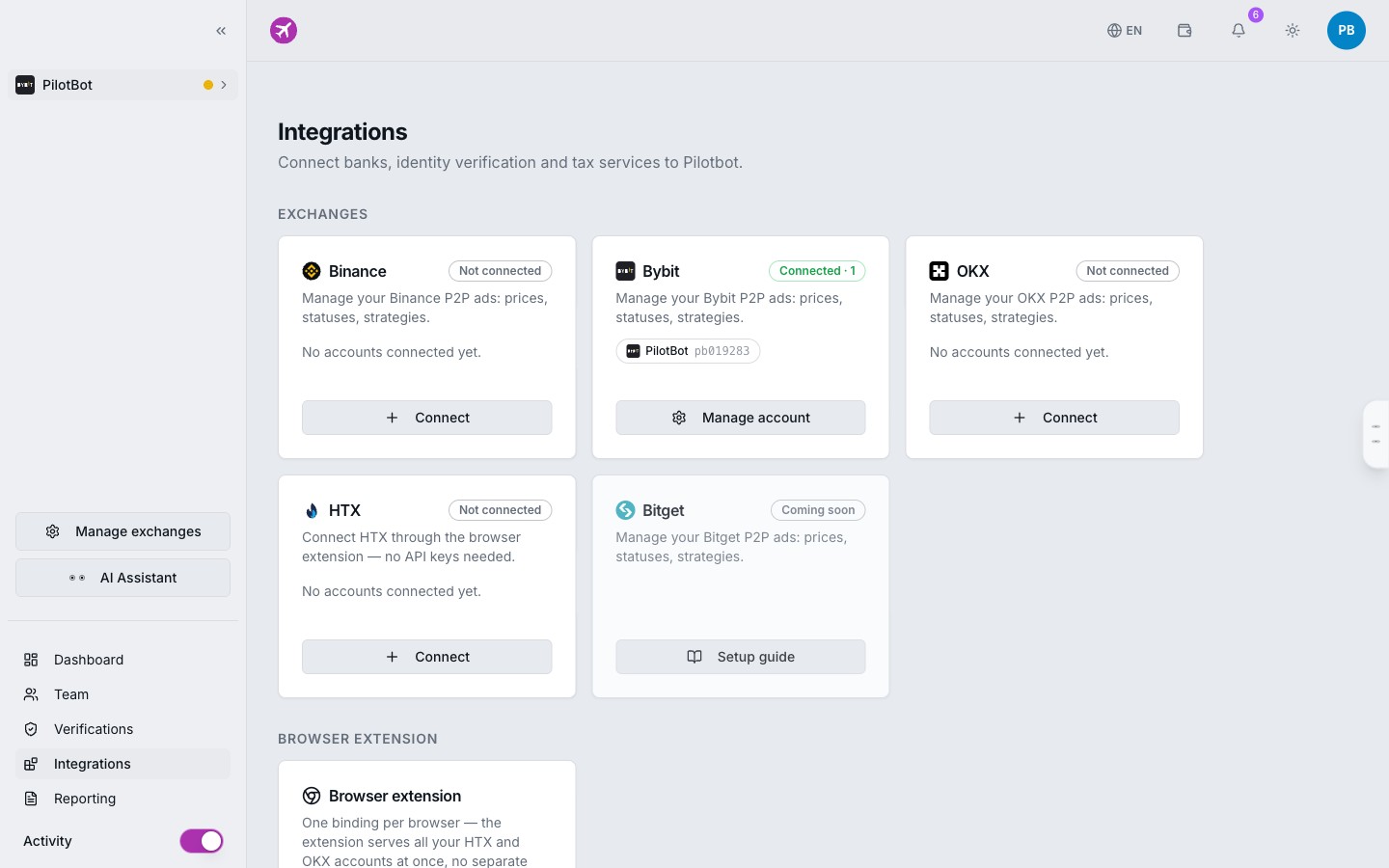
Here, you can view your active Passkeys at any time, add backup devices, configure two-factor authentication, and manage API key permissions for connected exchanges.
Step-by-Step Guide: Setting Up a Passkey in 3 Simple Steps
Setting up a passkey takes less than a minute. All you need is any modern device with biometrics (iPhone, iPad, Mac, Android smartphone, or Windows Hello laptop), or a hardware security key (such as a YubiKey).
Step 1. Navigate to Security Settings
- Sign in to your Pilotbot dashboard.
- In the left sidebar, go to Settings.
- Open the Security tab.
- Locate the Passkeys section and click Add Passkey.
Step 2. Confirm Biometrics on Your Device
Your browser will trigger the standard system authentication prompt:
- On Apple devices (macOS, iOS): touch the Touch ID sensor or authenticate with Face ID. The key will automatically save to your iCloud Keychain.
- On Windows: touch the fingerprint sensor, look into the Windows Hello camera, or enter your device PIN.
- On Android: touch the fingerprint sensor. The key will link to your Google Account.
- With a hardware token (YubiKey): plug the key into a USB port or tap via NFC and touch the golden contact.
Step 3. Instant Sign-In
The next time you log into Pilotbot:
- On the login page, click Sign in with Passkey.
- Confirm your biometrics on your device.
- You are instantly redirected to your active ad management terminal.
No more typing long passwords, searching for codes in messaging apps, or waiting for SMS messages.
The Ideal Duo: Using Passkeys Alongside 2FA
A common question among experienced arbitrageurs is: "If Passkeys are so secure, do I still need two-factor authentication (2FA)?"
The answer is yes, defense-in-depth provides the highest level of security.
A Passkey itself already combines two factors:
- Possession Factor: The physical device or hardware security module.
- Inherence Factor: Your biometric signature (fingerprint or facial scan).
However, if you ever need to access the platform from a guest computer or workstation without biometric hardware using a classic password, two-factor authentication (TOTP) serves as an iron second line of defense.
Recommended golden security configuration:
- Primary Sign-In Method: Passkey (instant, convenient, zero phishing risk).
- Backup Sign-In Method: Strong password from a password manager + one-time 2FA code (Google Authenticator, Apple Passwords).
Security Checklist for an Active P2P Trader
- Created a Passkey on your main workstation (Mac / Windows PC).
- Added a backup Passkey on your mobile phone (iOS / Android).
- Enabled backup two-factor authentication (2FA) for password login.
- Stored backup recovery keys in a safe, offline location.
- Verified API key restrictions on connected exchanges (withdrawals strictly disabled).