How to Add a Team Member
Invite a team member to manage exchange ads, assign their role, and control granular access to specific accounts.
Pilotbot Team
Author
On this page
- Control Architecture: Who Can Manage the Team
- Step-by-Step Guide: From Invite to First Shift
- Step 1. Open the Team Management Panel
- Step 2. Send a Personal Invitation
- Step 3. Assign an Operational Role
- Step 4. Assign Specific Exchange Accounts
- What the Employee Sees: Isolated Visibility Principle
- Instant Access Revocation and Security
- Related Guides

The Power of Delegation: Scaling Your P2P Team in Pilotbot Without Capital Risk
A successful P2P business cannot rest indefinitely on the shoulders of one person. Round-the-clock order book monitoring, limit tracking, counterparty communication, and ad switching quickly lead to burnout or costly mistakes due to fatigue. Scaling inevitably requires bringing on operators, but in the crypto industry, delegation always comes with colossal risk: how do you entrust trading to employees without handing over exchange passwords or withdrawal permissions?
The Pilotbot operating system solves this dilemma with a two-tier isolation model: role-based access control (RBAC) and granular exchange account segmentation. You delegate routine tasks to staff while retaining absolute control over capital and strategy.
Control Architecture: Who Can Manage the Team
Pilotbot enforces a strict hierarchy. Only the Workspace Owner can add new members, modify roles, and distribute exchange accounts.
The number of available seats is determined by your current subscription plan. As volume grows and your shift-trading team expands, you can instantly increase your seat limits by upgrading in Plans & Limits.
Step-by-Step Guide: From Invite to First Shift
Connecting an employee is designed to take less than two minutes while preventing accidental access misconfigurations.
Step 1. Open the Team Management Panel
Navigate to the Pilotbot main menu and select Team in the left navigation bar. This is your central hub for staff management: view active members, pending invitation statuses, and permissions.
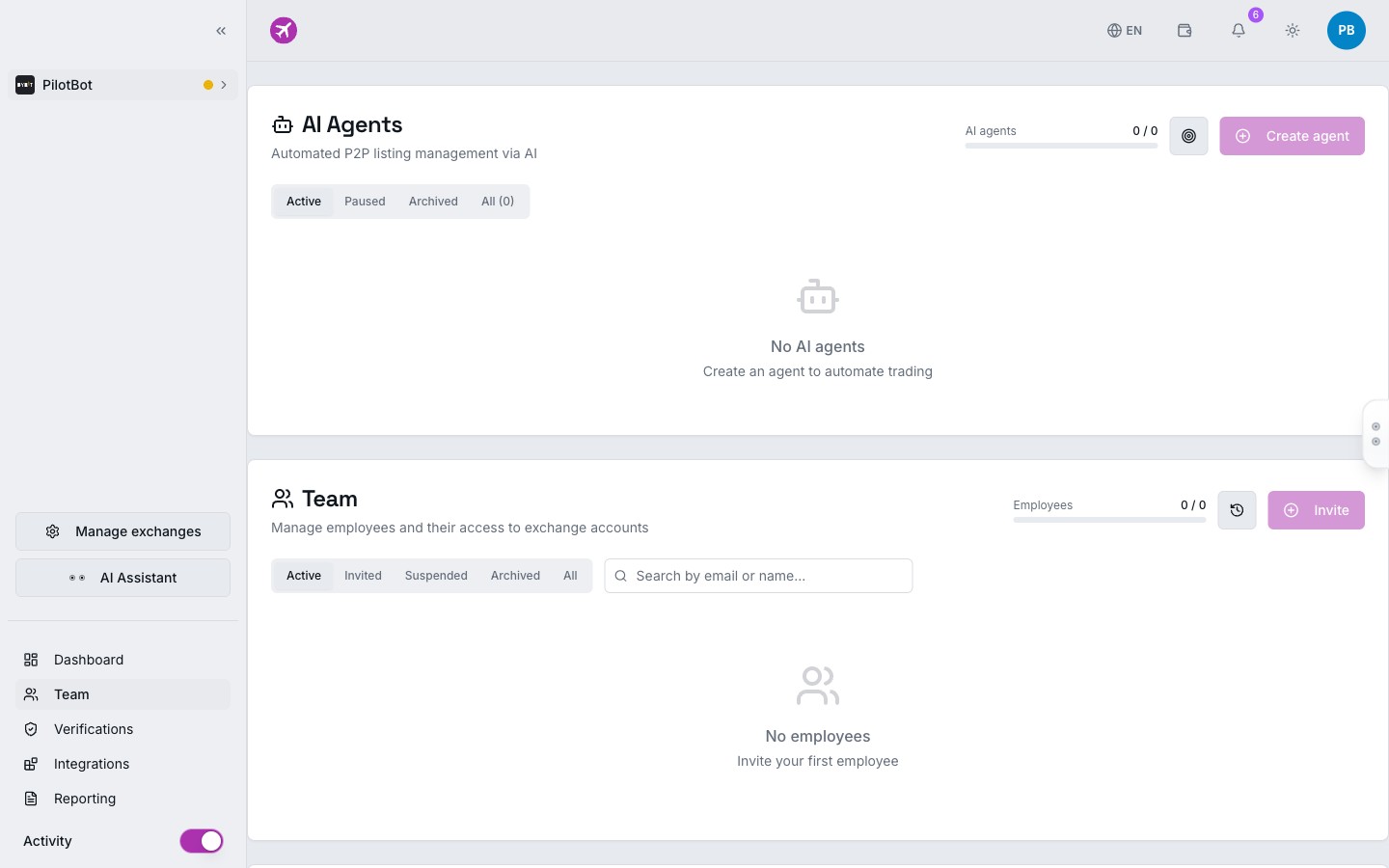
Step 2. Send a Personal Invitation
- Click the Invite Member button in the top right corner.
- Enter the professional email address of the person you want to add to your desk.
- The system generates a unique, time-limited, secure invitation link sent to that email address.
Step 3. Assign an Operational Role
A role defines the functional scope of what a team member can do in the system. Select one of the preset access profiles:
- Trader — Frontline order book operator. Can toggle on, off, and pause ads on assigned accounts. Cannot modify global strategies or AI agent settings.
- Manager — Shift supervisor or desk lead. Has extended control: adjusts strategy parameters, modifies spreads, manages ads, and inspects the audit log.
- Viewer — Analyst or trainee. Read-only mode. Can view charts, monitoring data, and active positions, but cannot click any execution buttons.
- Auditor — Dedicated supervision and financial oversight role. Full read-only access to analytics and operation history with zero execution authority.
For a detailed side-by-side permission breakdown, see Team Roles Explained.
Step 4. Assign Specific Exchange Accounts
Pilotbot's strongest security mechanism is granular account scoping.
Even with the Trader role assigned, an employee sees nothing until you explicitly link their profile to specific connected exchanges:
- In the employee's profile card, switch to the Account Access tab.
- Check the boxes only for the exchanges (e.g., Binance-Main or Bybit-Desk2) the operator is assigned to manage.
- Save your changes.
What the Employee Sees: Isolated Visibility Principle
Pilotbot is engineered around a Zero-Knowledge data isolation standard for frontline staff:
- No Excess Data. When logging in, employees only see the ads and exchange profiles to which you explicitly granted access. Other accounts simply do not exist for them.
- Hidden Billing Information. Staff cannot view subscription balances, payment history, saved payment methods, or the workspace plan tier.
- Secured API Keys. Your private exchange API keys and secrets are never exposed in the team interface, even in masked form.
Instant Access Revocation and Security
If an operator leaves your desk or violates operational protocol, you can terminate access in a single click:
- Open the member's profile in the Team section.
- Uncheck assigned exchanges or click Revoke Access / Remove from Team.
- The employee's session is immediately deauthenticated, and their ability to control ads ceases that very second.