How to connect Bybit to Pilotbot
Step-by-step: create a Bybit API key with the necessary permissions, restrict it by IP, and insert it into Pilotbot — without withdrawal access.
Pilotbot Team
Author
On this page
Connecting Bybit works just like Binance: you create a Bybit API key with limited permissions and insert it into Pilotbot. The key allows the pricing layer to read the market and manage the prices of your ads — withdrawal of funds is never possible.
Step 1 — Open the API section on Bybit
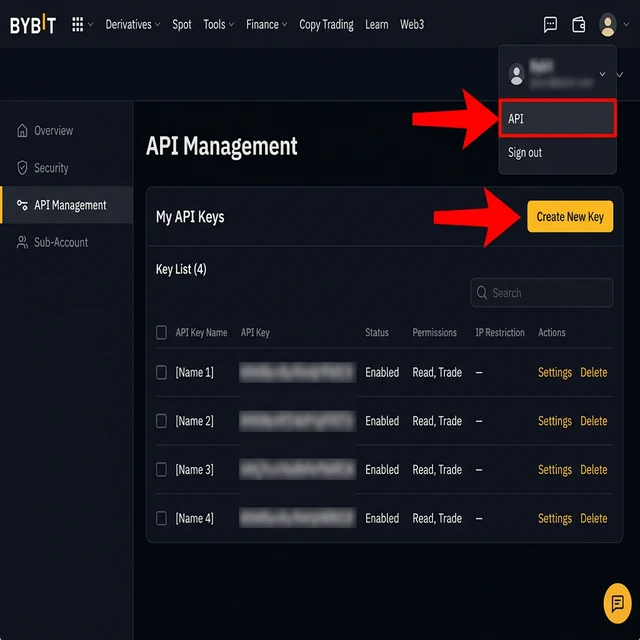
Log into your Bybit account and navigate to the API (API Management) section — via the direct Bybit link or from your account settings.
Step 2 — Create a new API key
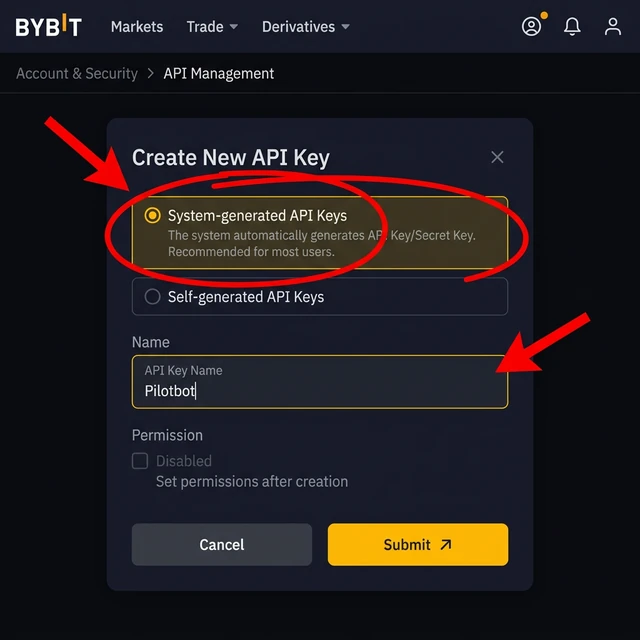
Create a new key. Select the System-generated key type, not a third-party application key, and give it a clear name, for example Pilotbot.
Step 3 — Set access level and IP restriction
Set access to Read-Write, select Only IPs with permissions granted are allowed to access the OpenAPI, and add the server IP addresses provided by Pilotbot — this keeps the key secure and bound only to our servers.
Step 4 — Configure API permissions
In Bybit's permissions section, check the following boxes:
- Section «Fiat trading» → «P2P»:
- Orders — tracking and confirming P2P orders.
- Ads — creating, editing prices, and updating ad limits (mandatory for bot automation). (Both checkboxes are required).
- Section «Assets» → «Wallet»:
- Account Transfer — required for automated ad balance refills between your internal Bybit accounts (Spot / Funding). Assets remain within your exchange account.
- Account Safety:
- Withdrawal — LEAVE OFF / UNCHECKED. Pilotbot never requests and cannot technically initiate withdrawals.
Step 5 — Click «Submit» and confirm 2FA
Click the orange «Submit» button at the bottom of the Bybit form and enter your two-factor authentication code (Google Authenticator or email).
Step 6 — Copy both keys
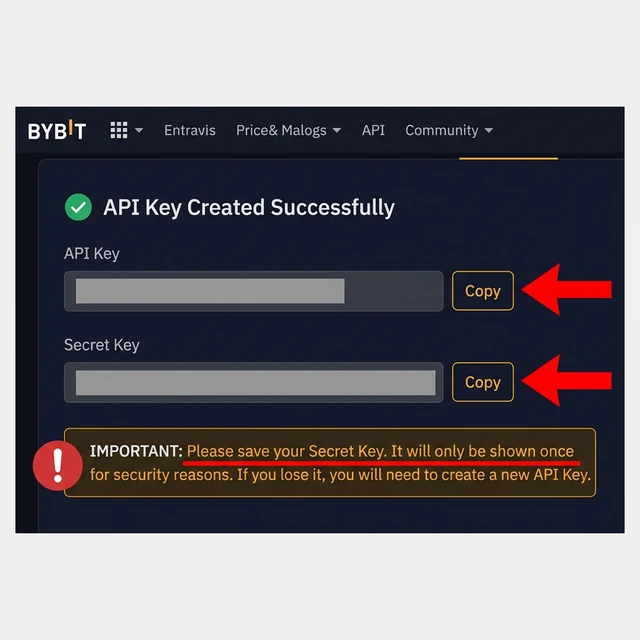
After confirmation, Bybit displays your API Key and Secret Key — copy your Secret Key immediately as it will never be displayed again.
Step 7 — Insert the keys into Pilotbot
Return to Pilotbot, open Add Account, select the Bybit tab, insert the API Key and Secret Key, and click Confirm and add.
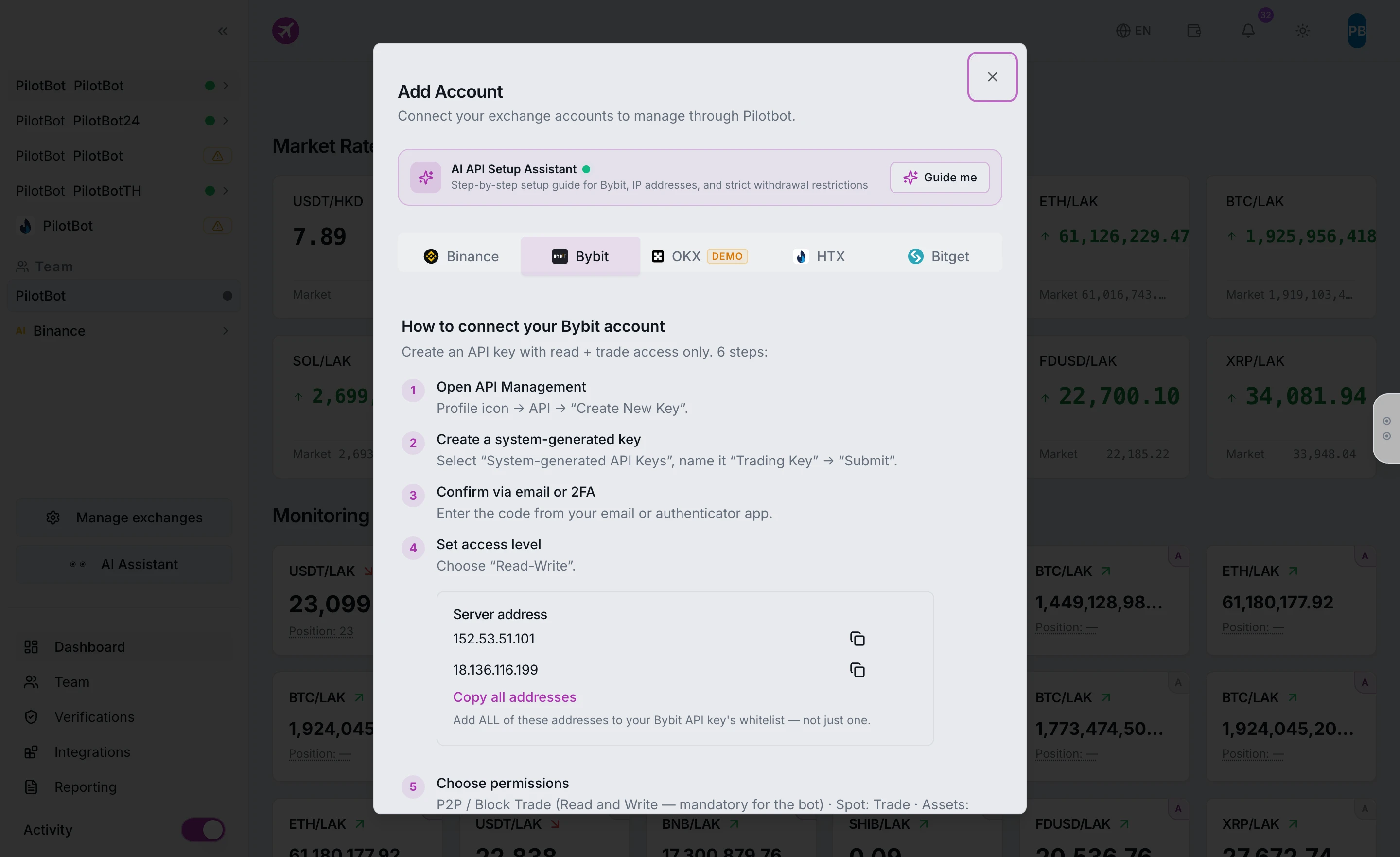
Your Bybit account will appear in the sidebar. Next, configure the strategy via the AI agent and enable automation for your ads.