How to Regain Access After Losing a Security Verification
What to do if you lose access to two-factor authentication, change your phone number, or need to update the email linked to your Pilotbot account.
Pilotbot Team
Author
On this page
- Security Architecture: How Your Profile's Perimeter Is Structured
- Scenario 1: Lost Two-Factor Authentication (2FA) Device
- Step-by-Step Recovery Protocol
- Scenario 2: Changing Phone Number or Lost SIM Card
- Required Information
- Scenario 3: Changing Primary Account Email
- Document Package for Enhanced Verification
- Immediate Actions After Regaining Access
- Useful Security Resources

Account Recovery: A Lifeline When Security Factors Are Lost
Losing a smartphone with a code generator, facing a sudden SIM card block, or needing to update a work email is a stressful scenario for any trader. When active arbitrage chains, running orders, and trading capital are on the line, every minute counts.
Yet Pilotbot's golden rule of security remains unshakable: your capital remains protected even when you temporarily lose the keys to your front door.
The platform deliberately prohibits resetting two-factor authentication (2FA), phone numbers, or email addresses with a "one-click" button in the web interface. If such a button existed, an attacker hijacking a browser session or accessing an unlocked laptop could attach their own phone in seconds and hijack your trading infrastructure. Every reset request undergoes personal verification by Pilotbot security officers.
Security Architecture: How Your Profile's Perimeter Is Structured
Pilotbot's security center integrates multi-tier defense: from biometric Passkeys to API session encryption and suspicious network telemetry monitoring.
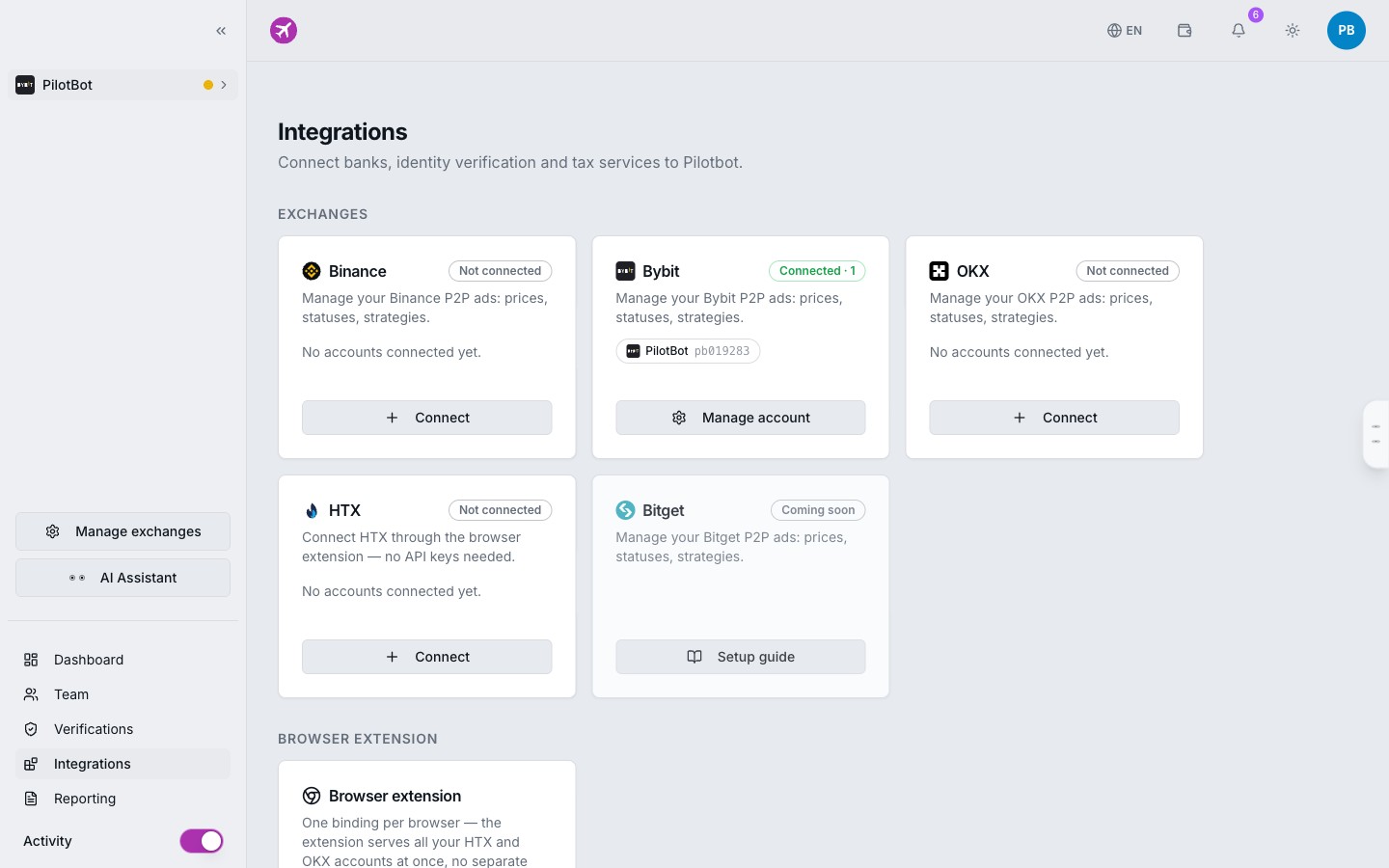
When one of the control factors fails, the recovery protocol triggers a strict identity verification procedure. Below is a detailed breakdown of how to promptly regain account control under each scenario.
Scenario 1: Lost Two-Factor Authentication (2FA) Device
If you broke or lost your phone, reinstalled your OS, or deleted your TOTP authenticator app (Google Authenticator, Authy, etc.) without a backup, standard password login will not work — the system will rightly demand a 6-digit one-time code.
Step-by-Step Recovery Protocol
- Open the official Contact Form.
- Select the subject: "Account Recovery / 2FA Reset".
- Specify your account registration email.
- Attach mandatory identity verification materials:
- Liveness Video Confirmation: Record a short 10–15 second video using your front camera where your face is clearly visible. Clearly state your account email, today's date, and the phrase: “Request to reset 2FA in Pilotbot”. This rules out deepfakes and reused old recordings.
- Security Context: Mention the approximate date of your last successful login, city/country, device model, or browser used.
- Submit the ticket.
After cross-checking your biometrics and digital footprint, security specialists will temporarily disable the 2FA check. You can then log in with your password and immediately link a fresh authenticator.
Scenario 2: Changing Phone Number or Lost SIM Card
Your phone number is used for urgent SMS alerts, confirming critical settings, and defending against unauthorized logins. If you switched carriers, relocated to another country, or lost your old phone number, update your profile via support.
Required Information
- Go to the Contact Form and select the subject "Change Phone Number".
- In the message text, include:
- Old phone number (or the last 4 digits if you cannot recall the full number).
- New phone number in international format (with country code).
- Reason for the change (carrier switch, lost SIM, relocation).
- Attach a screenshot of your carrier profile page or a billing receipt confirming ownership of the new number.
The security team will review session history and update the phone linkage without resetting your other security settings.
Scenario 3: Changing Primary Account Email
Your email in Pilotbot is not just a communication channel — it is your unique root login and primary identifier of license ownership. Changing email is the strictest procedure in the system, as compromising email is the target of most social engineering attacks.
Document Package for Enhanced Verification
To prevent hostile takeovers via a compromised old inbox, prepare:
- Government-Issued Photo ID: Passport, national ID card, or international driver's license (clear photos of front and back, without glare or cropped edges).
- Selfie with ID and Handwritten Note: Take a photo holding your open ID in one hand and a handwritten sheet of paper in the other, clearly displaying:
- Current date (day, month, year).
- Your old (current) email.
- Your desired new email.
- The verification codeword: PILOTBOT VERIFY.
- Proof Screenshots: Screenshots of your Pilotbot dashboard or subscription payment receipts sent to the old inbox.
Immediate Actions After Regaining Access
As soon as support confirms the reset and restores your access, run through this immediate security checklist:
- Update Master Password: Create a strong 16+ character password using a password manager.
- Re-enable 2FA: Link your authenticator and save the backup QR code in a secure encrypted vault.
- Set Up Passkeys: Enable biometric login via fingerprint or Touch ID / Face ID for seamless, phishing-proof authentication.
- Verify Exchange Connections: Ensure all your trading pairs and API keys remain in operational status.